
Add a read-only view of your Foundation Roster student schedule to your favorite calendar app! Use a QR code on iPhone or iPad, or use the feed URL on a Mac or in Outlook on the web.
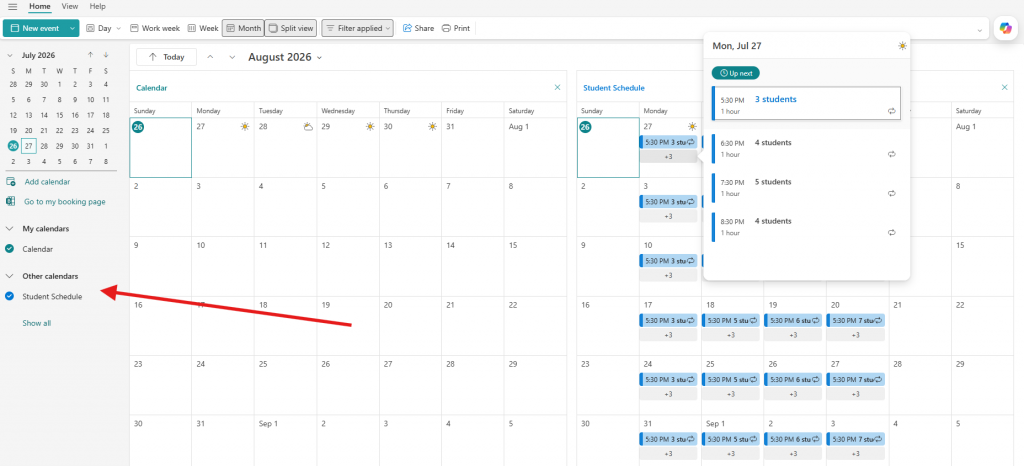
The calendar feed allows you to get a quick view of your center’s current schedule on your mobile device or on your computer. It’s a quick way for you to get a feel for capacity and availability for both your students and your staffing needs. It does not include student names or details — but it does give you a link so that you can get those details securely in Foundation Roster.
There are two feeds – one for your week-to-week schedule, and one specifically for trial sessions.
NOTE: Calendar feeds update on their own schedule - which may not be fast enough for your liking. Always check the Foundation Roster app for the most current schedule.
Viewing the Calendar Feed Options #
Calendar feeds are accessible for Site Admins.
Keep it private: This link is for staff use only. Do not post the QR code or URL in a public place.
- Go to Site Admin > Calendar Feeds to open the Calendar Feed page in Foundation Roster.
- If necessary, toggle to enable the Calendar Feed you want on your device, Calendar (weekly student schedules) or Trial.
- For the QR code method, click the QR Code button to display the QR code.
- For a URL method, click the Copy URL button or select and copy the calendar feed link.
Calendar on iPhone, iPad, and most Android devices #
QR code method
- Open the Camera app on your iPhone or iPad.
- Point the camera at the QR code. Hold the device still.
- Tap the message that appears at the top of the screen.
- Follow the message on the screen. Tap Subscribe.
- If asked, name the calendar (e.g., Foundation Roster Schedule) and pick a color.
- Choose iCloud for the account, if that choice is shown.
- Tap Add or Done.
Check your Device
- Open Calendar (or calendar app).
- Tap Calendars.
- Make sure the named Foundation Roster calendar has a check mark or is selected.
If the QR code does not scan: Make the code larger and turn up the screen light. You can also use the feed URL: Calendar > Calendars > Add Calendar > Add Subscription Calendar.
Apple Calendar on a Mac #
URL method
- In Foundation Roster, copy the calendar feed URL.
- Open the Calendar app on your Mac.
- From the top menu, choose File > New Calendar Subscription.
- Paste the feed URL into the box.
- Select Subscribe.
- Name the calendar (e.g., Foundation Roster Schedule) and pick a color.
- Next to Location, choose iCloud if you want the feed on your other Apple devices.
- Select OK.
Check your Mac
- Look for Foundation Roster in the calendar list.
- Make sure the box next to it is checked.
Outlook on the web #
URL method
- In Foundation Roster, copy the calendar feed URL.
- Sign in to Outlook on the web (https://outlook.office.com).
- Select Calendar on the left.
- Select Add calendar.
- Select Subscribe from web.
- Paste the feed URL into the box.
- Name the calendar (e.g., Foundation Roster Schedule) Pick a color or icon if you want.
- Select Import. Some screens may say Import and Save.
Check Outlook
- Look under My calendars for Foundation Roster.
- Select the calendar name to show its events.
Note: Updates may to some time to refresh or display.
Quick help
- No events show: Make sure the calendar is checked. Also check that the feed has events in the date range you are viewing.
- A change is missing: Wait and check again later. Calendar apps do not always update at once.
- The link does not work: Copy a new feed URL from Foundation Roster. Be sure you copied the full link.
- You need to change an event: Make the change in Foundation Roster. The feed is read-only.
- You want to remove the feed: Open the calendar list, find Foundation Roster, and choose Unsubscribe or Remove.
Official help


